 AiX User Guides
Appearance
Vk/AiX Setup
Step 1 - Select an Authorization Channel
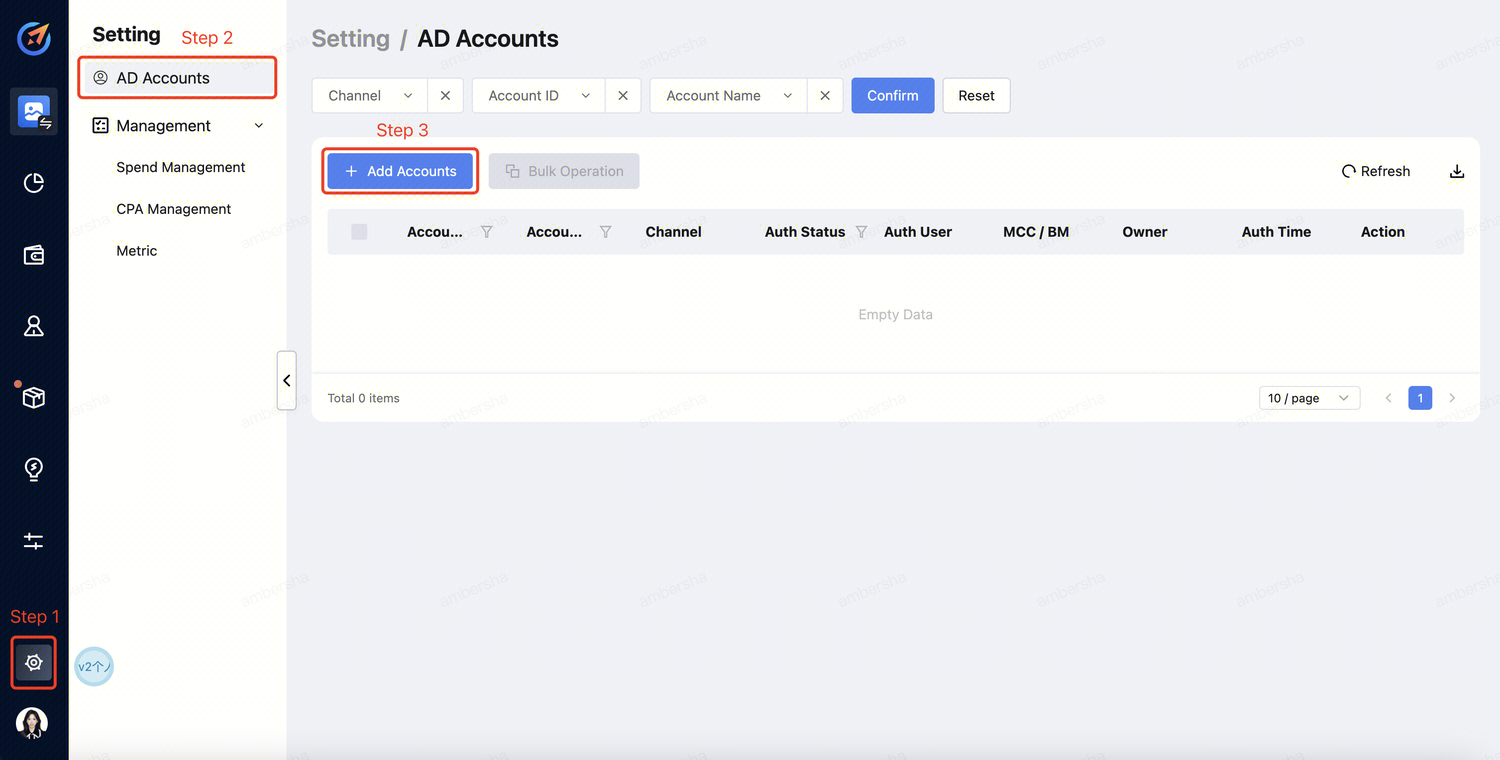
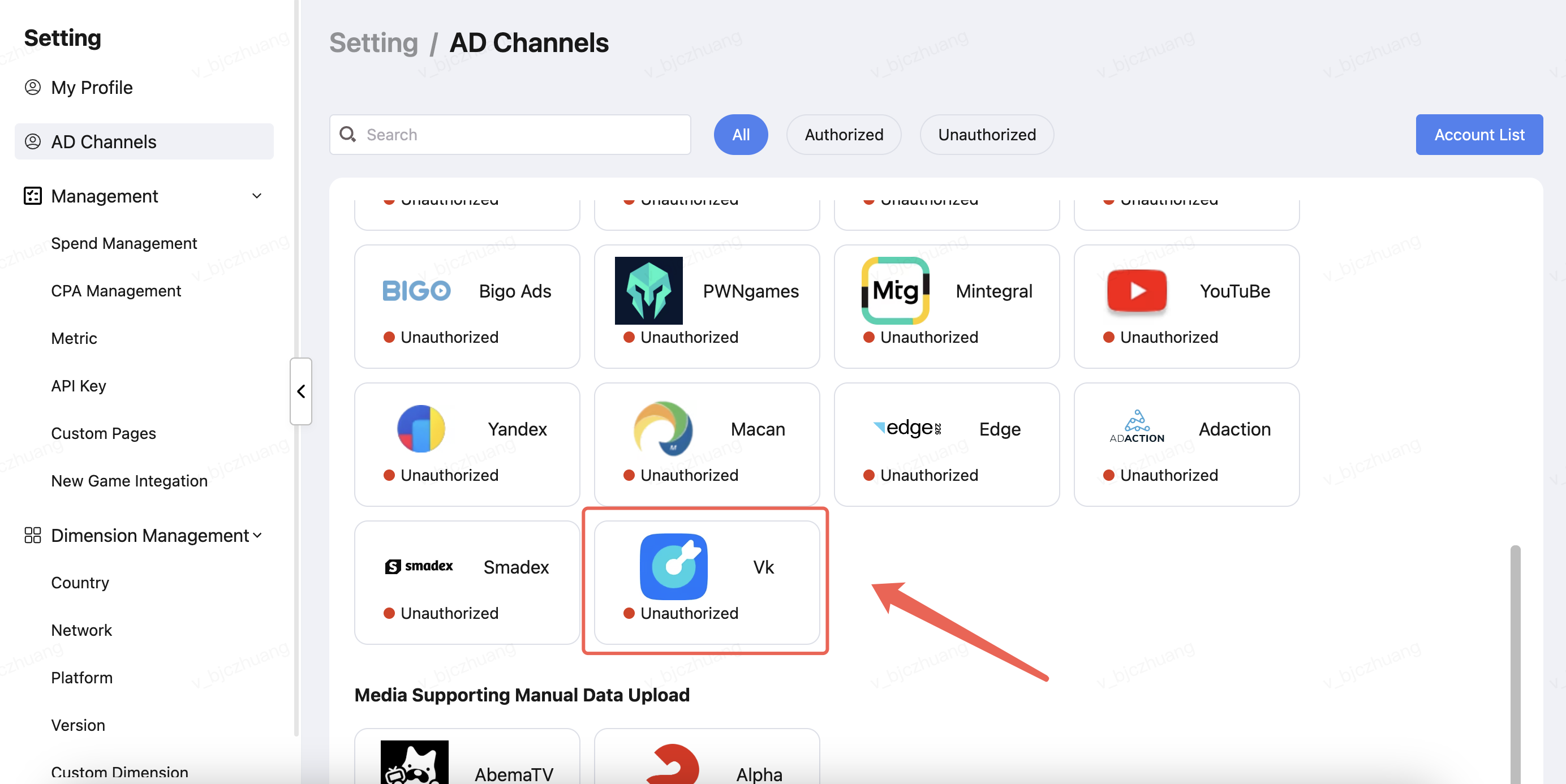
a. Select either access portal
Click "Setting" --> "AD Accounts" --> "Add Accounts" .
Click "Setting" -->"AD Channels" --> "Select the Media".
Step 2 - Account Login
a. Select the channel and click "Sign in". 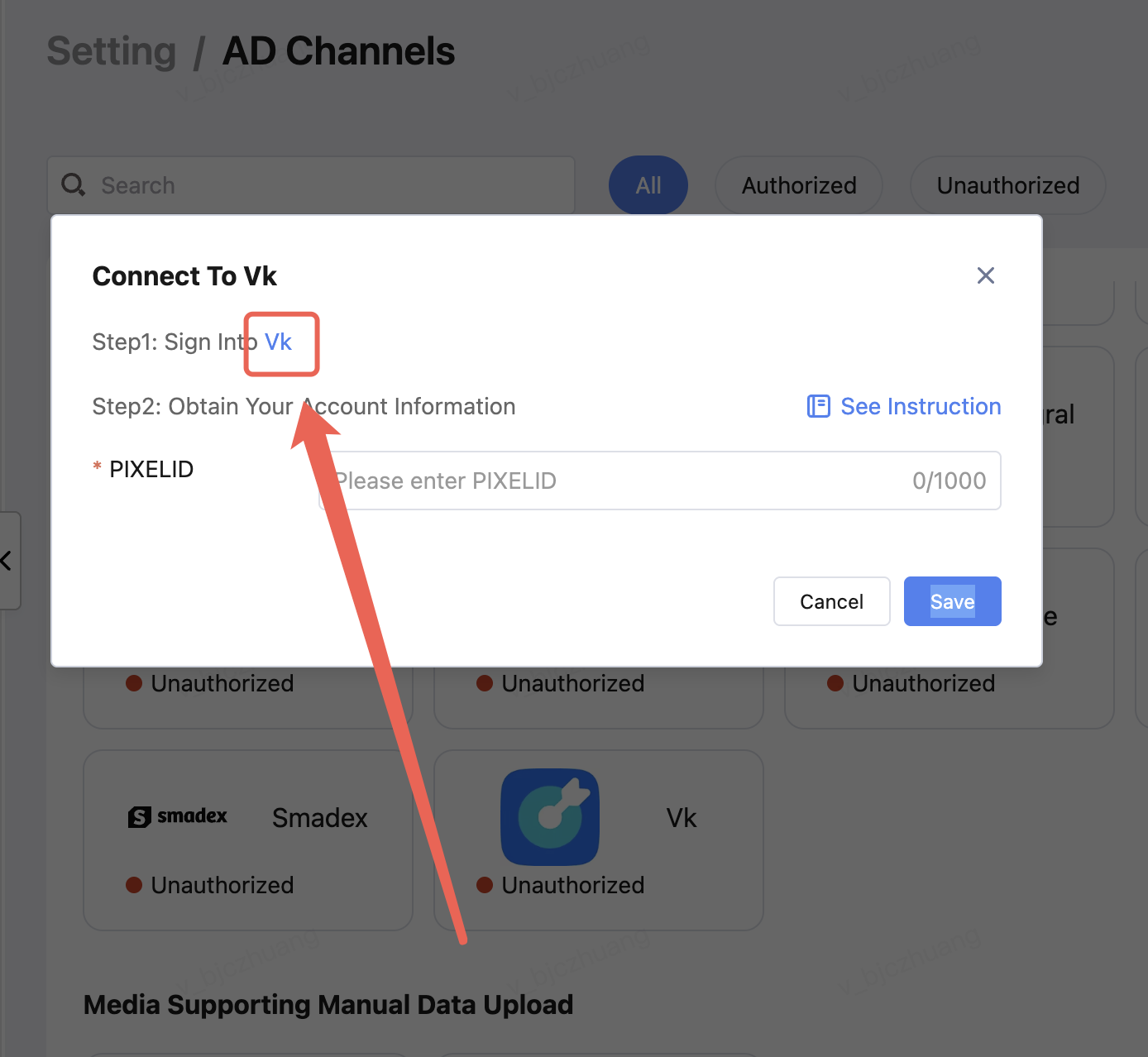
b. Log in to your account. 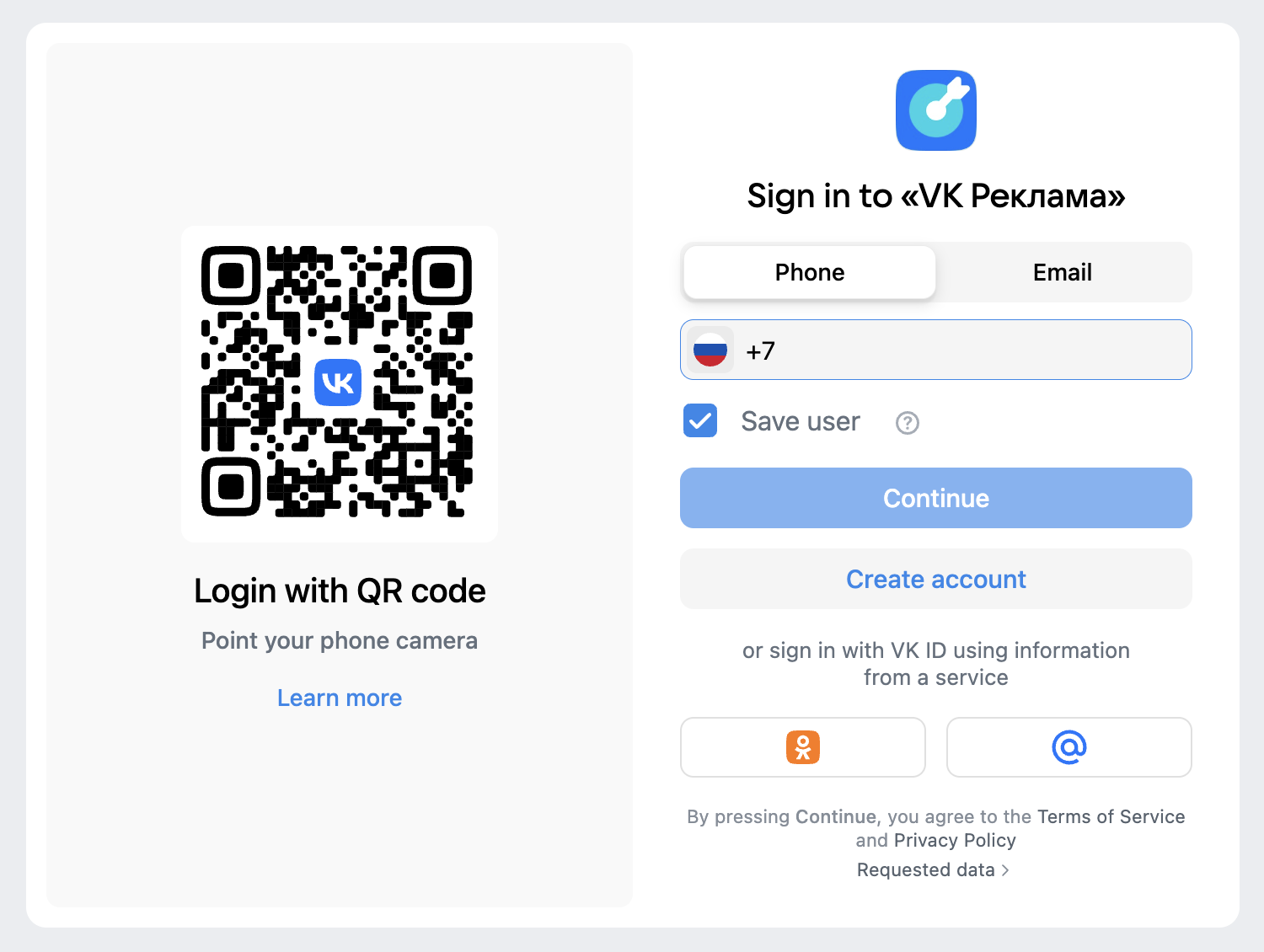
Step 3 - Obtain key
a. Log in to the VK Ads dashboard, then click Sites in the left sidebar (Event Sources → Sites).
The page will list all pixels. The table directly shows the numeric PIXELID, domain name, and data reception status. Just copy this number — that is your PIXELID. 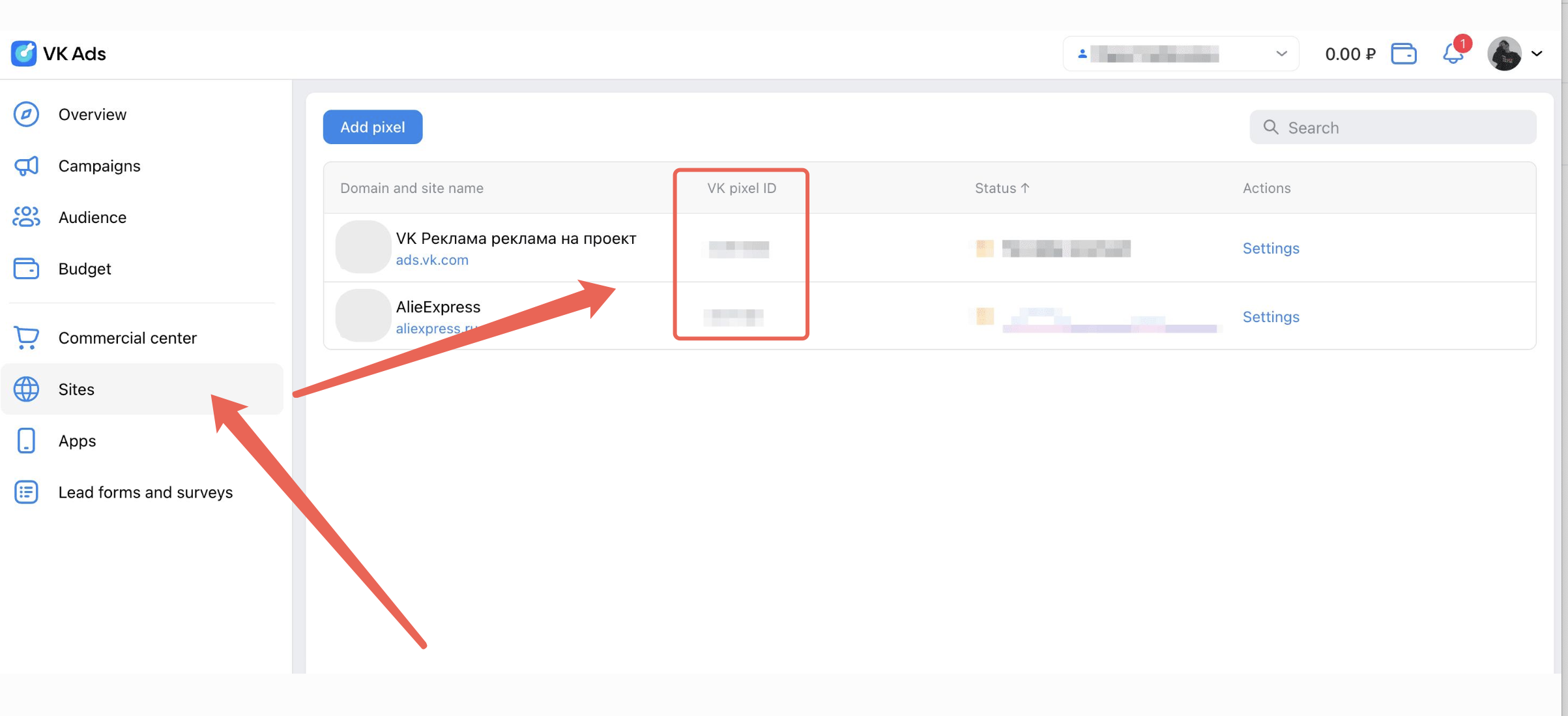
Step 4 - Account Info providing to AiX
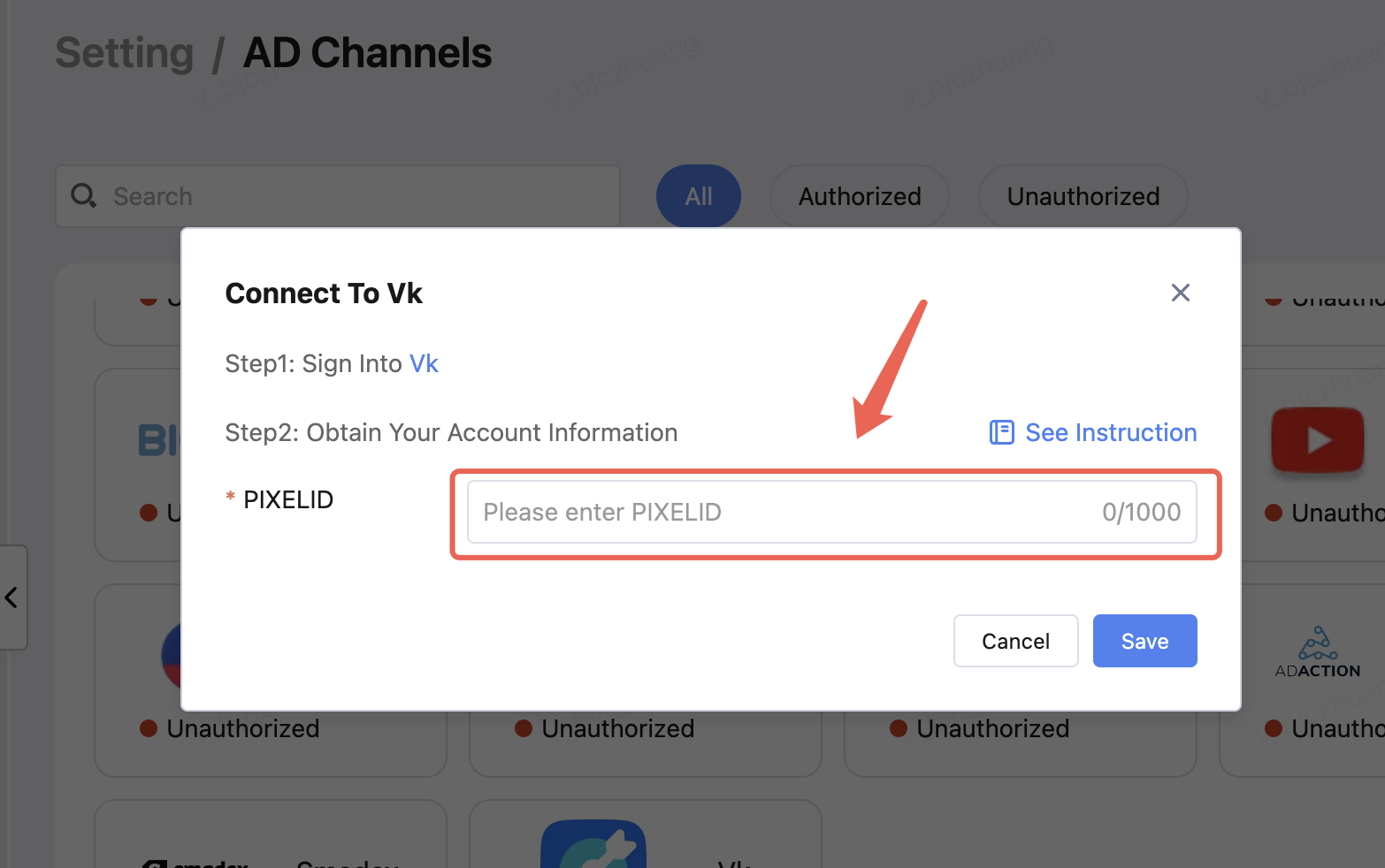
Enter the Pixelid,Finally, click Save.